
THE ZIPZAP HOW-TO
How to move TikTok stickers to WhatsApp on iPhone
Keep the reactions you love. Here’s the full path from a TikTok message to a sticker pack you can use in your WhatsApp chats.
The quick answer
To move TikTok stickers to WhatsApp with ZipZap, open Grabs, copy your code, and send it to @zipzapstickers on TikTok. Once the message is accepted, send your stickers in the same chat. Return to ZipZap, select 3 to 30 stickers, and tap Add to WhatsApp.
This guide covers stickers sent through TikTok messages. It doesn’t convert TikTok videos or automatically copy all your saved stickers.
Before you start
- An iPhone with ZipZap and WhatsApp installed.
- A TikTok account that can send direct messages to @zipzapstickers.
- An internet connection while you link your account and collect stickers.
- At least three stickers to make a WhatsApp pack.
ZipZap is free to download and try, with transfer limits. Check the app for current limits and optional Pro subscription prices. This walkthrough is for iPhone; ZipZap’s iPhone flow does not apply to Android.
How to transfer TikTok stickers to WhatsApp
Open Grabs and copy your code
Open ZipZap and choose the Grabs tab. Tap the code shown there to copy it. Use your own code from the app: it tells ZipZap which TikTok conversation belongs to your sticker collection.
You don’t need to create an email-and-password account in ZipZap. Sending the code links the TikTok account you use for that message.
Send the code to @zipzapstickers on TikTok
Open TikTok, find @zipzapstickers, and follow the account. Open a direct message, paste the code, and send it.
Send the code as a message in that conversation. Posting it in a video comment won’t link your Grabs. If you use more than one TikTok account, make sure you keep using the account that sent the code.
Wait for the message request to be accepted
Wait for acceptance before sending your stickers. A new conversation may initially let you send only a limited message request. If you’ve sent your code but can’t send more messages yet, this is the step to check first.
Back in Grabs, ZipZap shows whether your TikTok account is linked or it is still waiting for your code.
Send the stickers you want in the same chat
After the message is accepted, send your favorite stickers to @zipzapstickers. Send the stickers themselves, rather than screenshots of them or links to TikTok videos.
Choose enough reactions for a pack. For example, send a happy sticker, a laughing sticker, and a surprised sticker. You can leave out reactions later when you select your pack.
Return to Grabs and select your pack
Open Grabs again. Stickers usually appear a few minutes after you send them; they may not arrive immediately. Pull down to refresh if you want to check again.
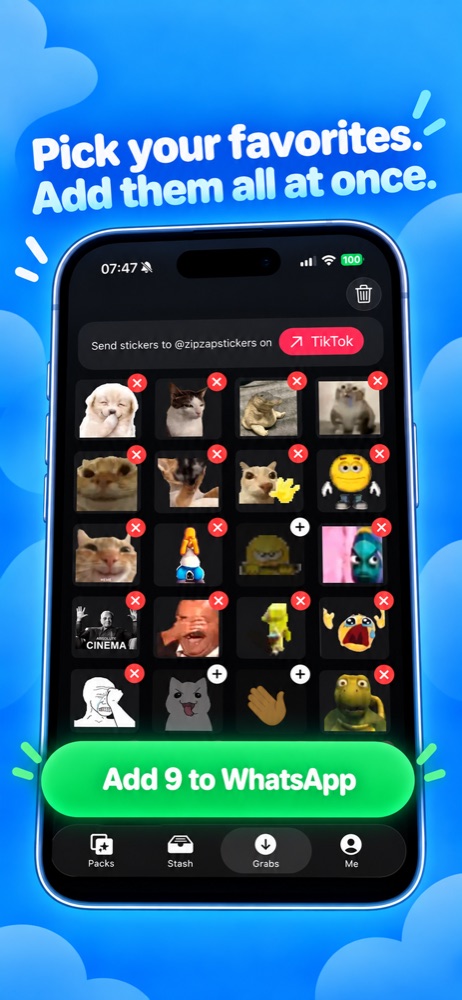
Select between 3 and 30 stickers. Leave out any you don’t want. If you have more than 30, make smaller packs from your collection instead of trying to export them all in one pack.
Tap Add to WhatsApp and confirm
Tap Add to WhatsApp in ZipZap. When WhatsApp opens, follow its prompt to add the pack. Then open a conversation in WhatsApp and look for the new pack in the sticker picker.
Your collection is ready to use as stickers in chat. To return to a saved pack later, open Stash in ZipZap.
Can you move animated TikTok stickers too?
Yes. ZipZap supports animated TikTok sticker imports and prepares the pack for WhatsApp. Use the same process: send the moving sticker in the TikTok conversation, collect it in Grabs, and export your pack.
A screenshot only captures one frame. If you want the movement, send the animated sticker itself. A TikTok video link is different from an animated sticker and is not an input for this transfer flow.
TikTok stickers not transferring? Check the step where it stopped
| What you see | What to do next |
|---|---|
| TikTok won’t let you send a message | Check that you’re messaging @zipzapstickers and follow the account. TikTok messaging restrictions can affect new accounts. If messaging remains unavailable, this transfer method can’t proceed until you can send the code. |
| Grabs still says it’s waiting for your code | Copy the code currently shown in Grabs. Check that you sent it to the correct account in a direct message, and wait for the request to be accepted. |
| You sent stickers but Grabs is empty | Check that the account is linked, that you used the same TikTok conversation, and that you sent stickers after acceptance. Allow a few minutes, then pull down to refresh Grabs. |
| The pack isn’t ready to export | Check your selection: a WhatsApp pack needs 3 to 30 stickers. Also check any transfer-limit message shown in ZipZap. |
| The pack isn’t visible in WhatsApp | Check that WhatsApp is installed and that you completed its add-pack prompt. Open the saved pack in Stash to add it again if needed. |
If you’re still stuck, contact ZipZap support with the step you reached and the error shown. That makes it easier to distinguish a TikTok messaging problem from a pack export problem.
Common questions
Does this move all my TikTok favorites automatically?
No. Grabs collects the stickers you send to the linked TikTok conversation. Start with the reactions you want in your first WhatsApp pack, then send more when you want another collection.
Do I need to crop every sticker?
No screenshotting or manual cropping is needed for this method. Send the original sticker in TikTok, then select it in Grabs. ZipZap prepares the stickers for the WhatsApp export.
How long does it take?
There are two waits: acceptance of your first message request, and collection of the stickers you send afterward. Stickers usually appear within a few minutes after sending, but the complete process is not guaranteed to finish in a fixed time.
Can I use this guide on Android?
This guide uses ZipZap for iPhone. You’ll need a method or app available on Android if that’s the phone you use.
Can I make my own stickers instead?
Yes. For a different kind of personal reaction, ZipZap’s animated pet sticker maker creates moving stickers from a photo of your pet. That’s separate from importing stickers through Grabs.
READY FOR YOUR FIRST PACK?
Bring your favorite reactions along.
Start in Grabs, send your code, and choose the TikTok stickers you want in your WhatsApp chats.
Get ZipZap for iPhone ↗